

How it works
How a CogniStride session works, from profile to note
CogniStride runs in the browser. A session is a short loop: open a patient, run an exercise, let it record itself, check effort, and repeat. Here is each step with the real screens.
-
Step 1: Create an account and choose a plan
Pick Clinician or Individual, then a plan. Checkout is handled by Stripe and every plan starts with a 14-day free trial.
- Clinician Basic: up to 15 patients, charts and CSV export.
- Clinician Pro: unlimited patients, SOAP drafts, goals and backups.
- Individual: one personal profile and all six modules.
Individual
$9.99/mo
Personal cognitive training at home
Clinician Basic
$29/mo
For therapists with a small caseload
Clinician Pro
$59/mo
Full clinical documentation suite
14-day free trial on every plan. Cancel from your account before it ends and you pay nothing.
-
Step 2: Set up the patient profile
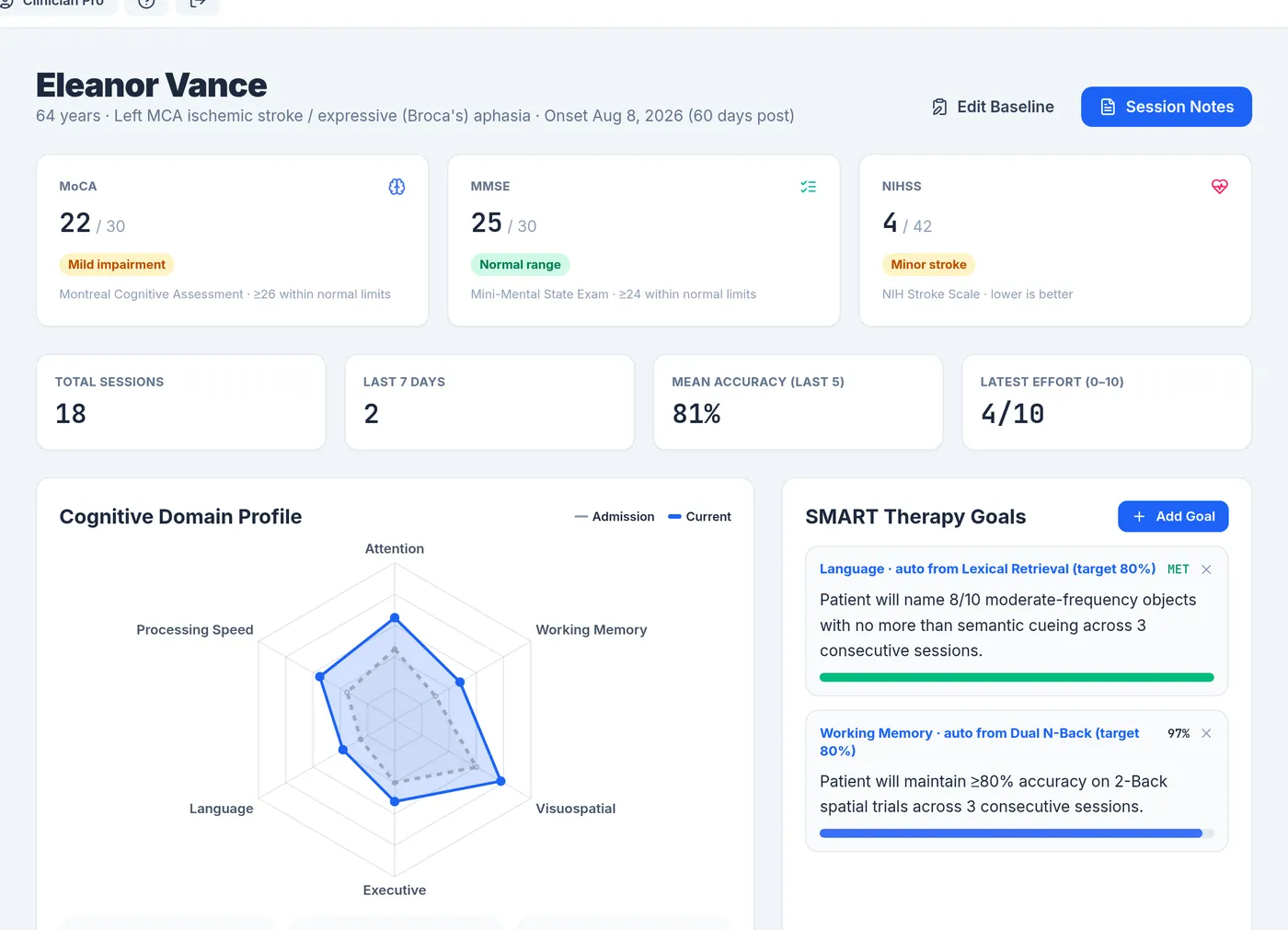
Enter what you already know: age, diagnosis, onset date and any MoCA, MMSE or NIHSS scores. The dashboard shows them with their usual severity bands, alongside goals and a six-area profile chart.
- Clinician accounts start with three read-only demo patients to explore first.
- Profiles are stored in your browser, separately for each account.
-
Step 3: Run an exercise module
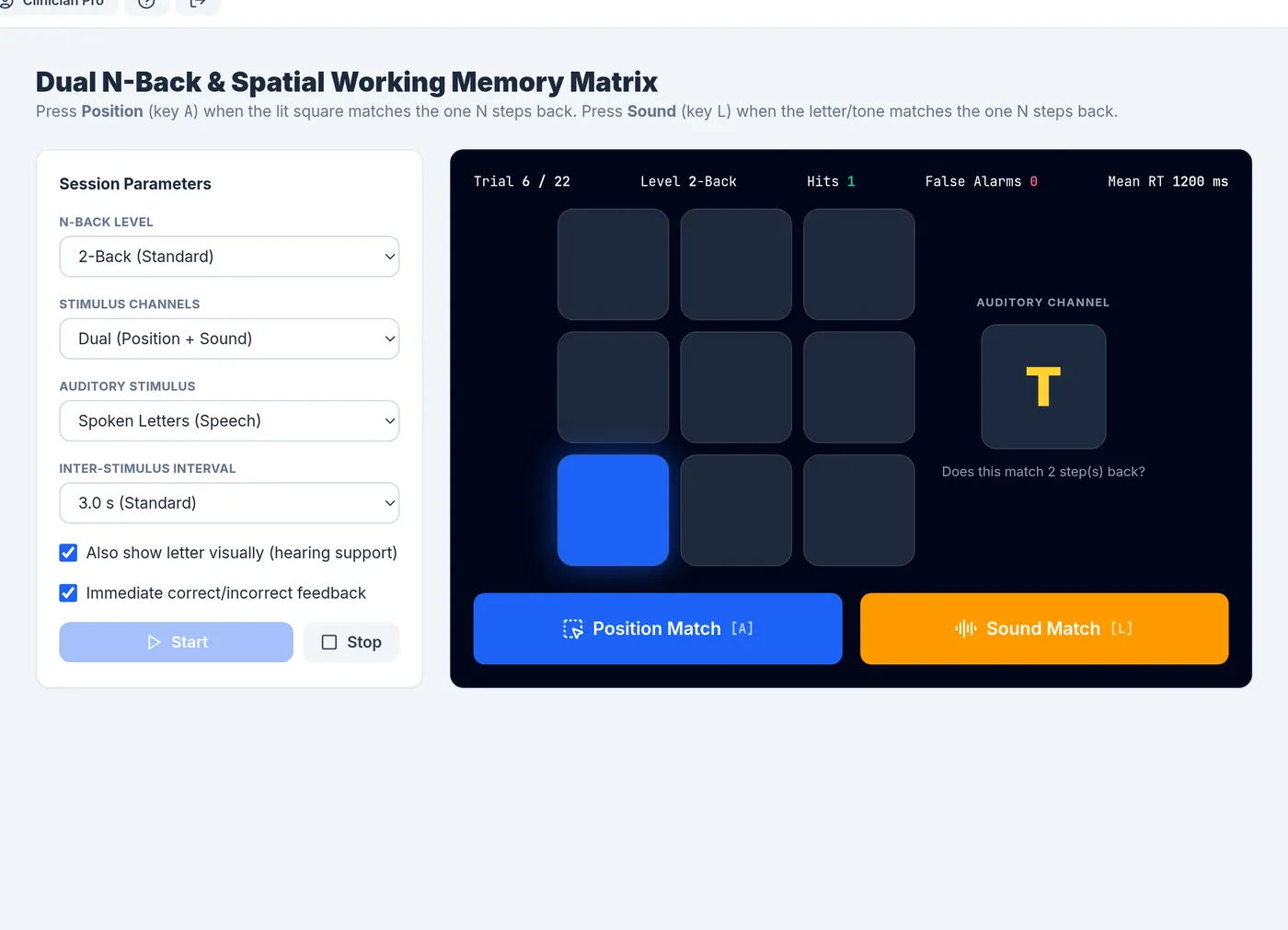
Choose a module from the sidebar and adjust its settings for today: N-back level, share of incongruent trials, cueing level, field size, recipe or target time. The patient responds by mouse, touch, keyboard, voice or switch.
- Exercises run in the browser; nothing to install.
- Instructions can be read aloud, and text can be enlarged up to 200%.
-
Step 4: Results are logged automatically
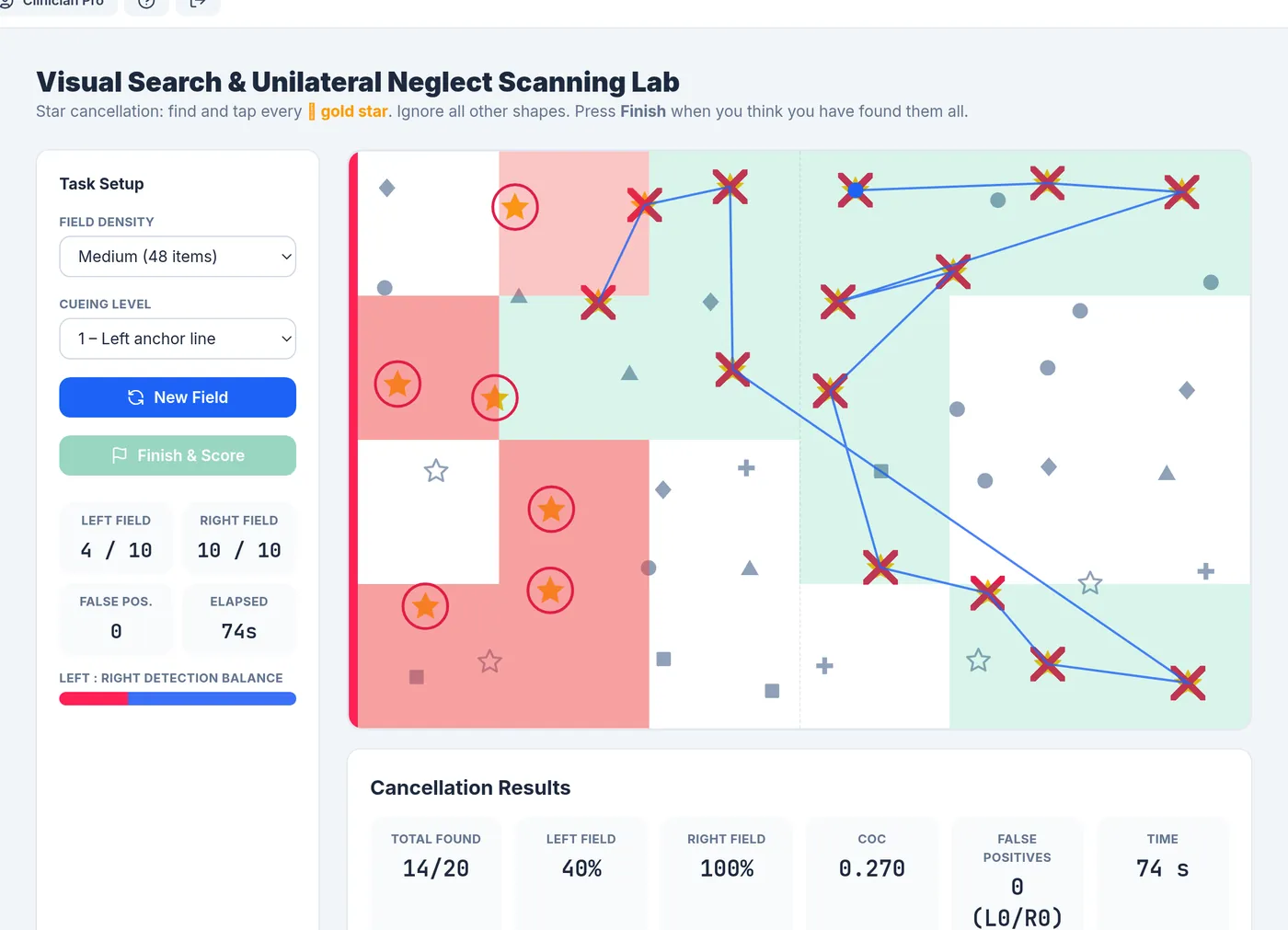
When an exercise ends, its results are saved to the patient’s record: accuracy, reaction time where timing applies, and module-specific measures such as cue levels or the centre of cancellation.
- Each record has a plain-language summary for notes.
- Demo patients show results but never save them.
-
Step 5: Check effort and take breaks
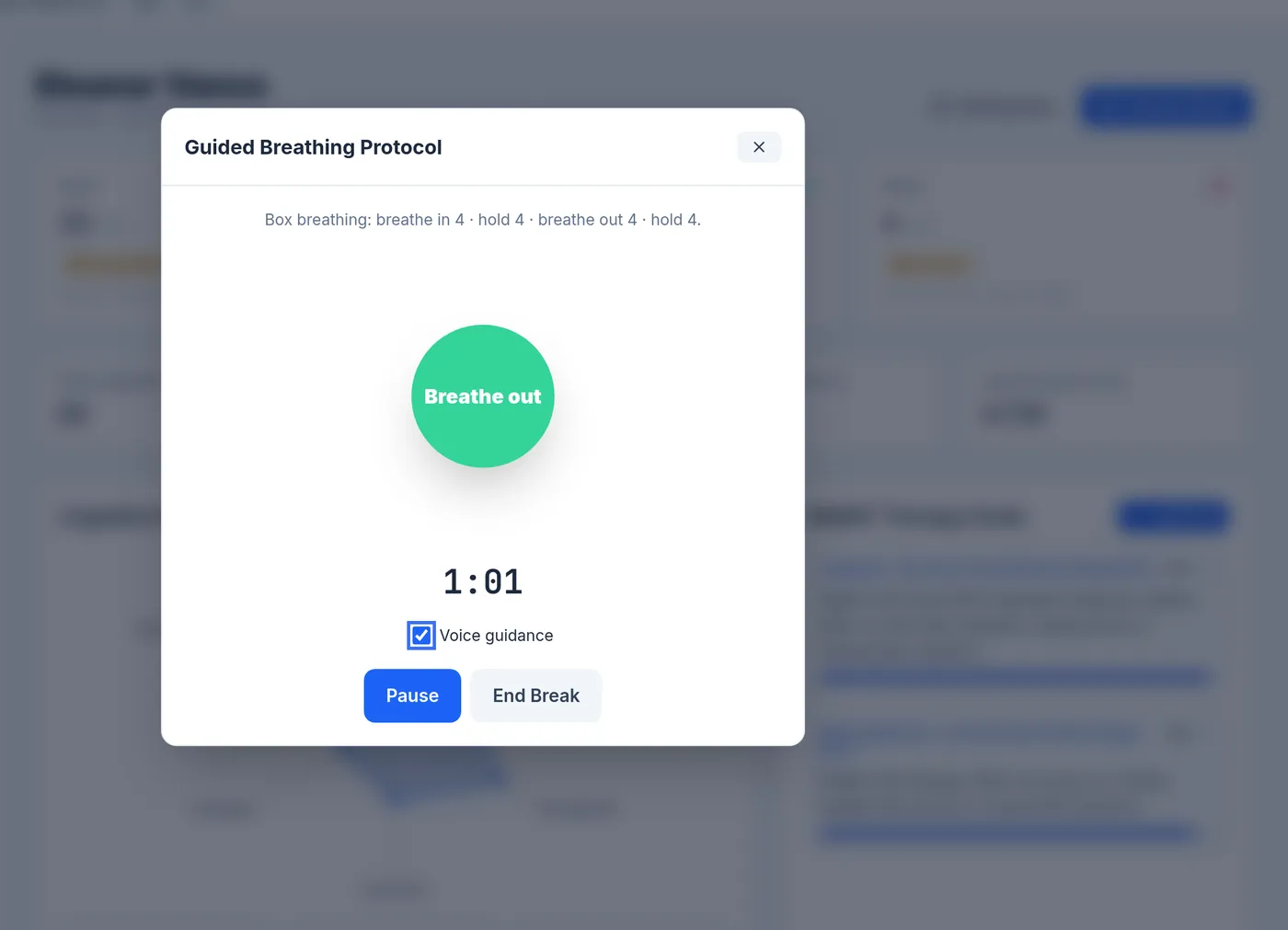
After every two exercises (or 15 minutes) the patient rates mental effort from 0 to 10. A rating of 7 or more starts a two-minute guided breathing break, after which the patient re-rates.
- Intervals and thresholds can be changed in pacing settings.
- Effort is stored with each result for later review.
-
Step 6: Review progress and document the session
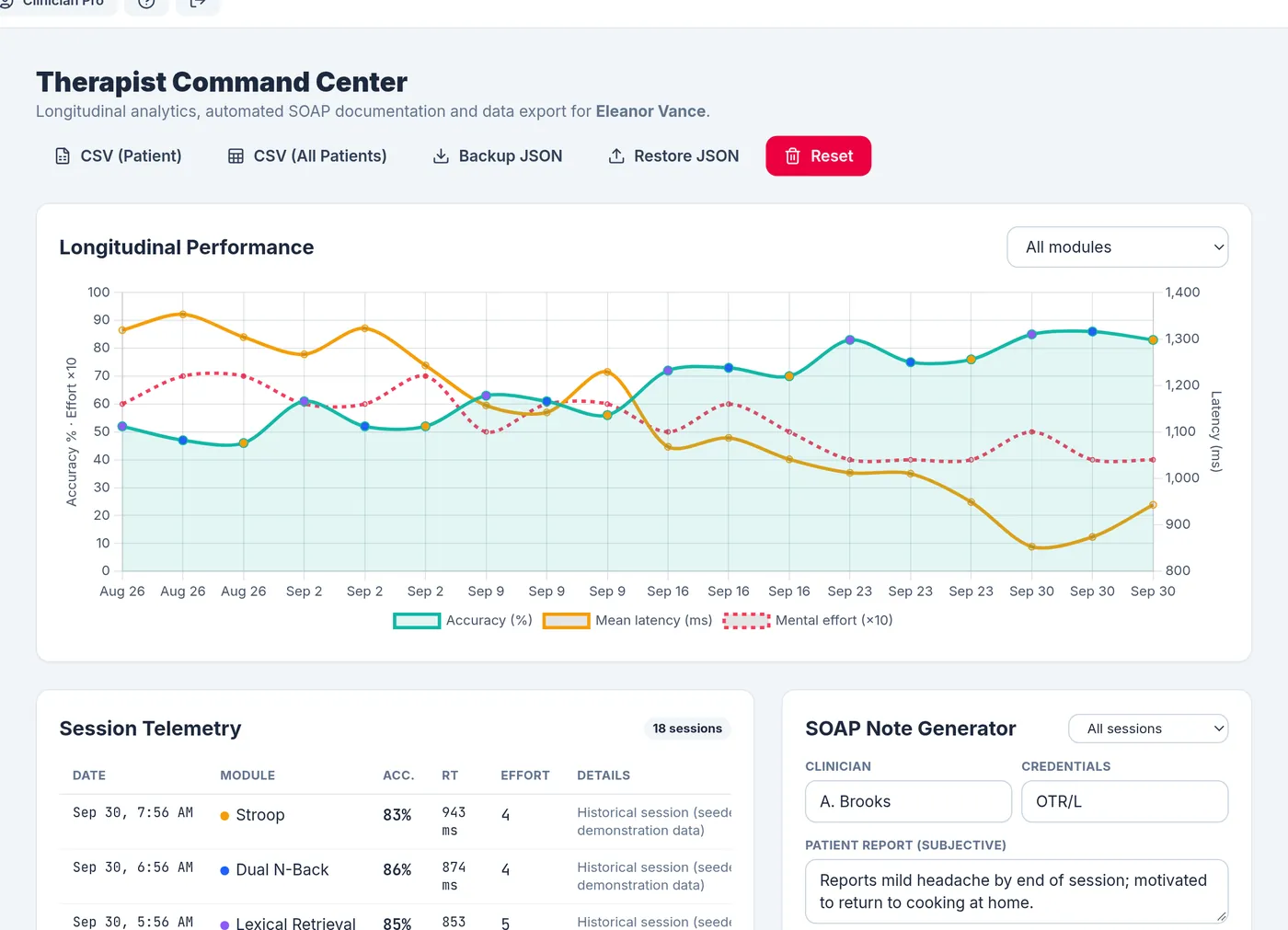
The Therapist Command Center charts accuracy, latency and effort across sessions and lists every record. Clinician Pro drafts a SOAP note from the recorded sessions, ready for you to edit and copy into your notes system.
- CSV export on Basic and Pro.
- SOAP drafts, SMART goals and backup files on Pro.
What you need
- A current browser: Chrome, Edge, Firefox or Safari, on a computer, laptop or tablet. A larger screen makes the cancellation and clock tasks easier.
- An internet connection to sign in and open the studio.
- Optional: speakers or headphones for spoken stimuli and cues, a microphone for voice answers (Chrome or Edge), and a stylus for clock drawing.
Because patient records are stored in the browser, use the same browser on the same device for a patient’s sessions. Here’s why, and how backups work.
Try CogniStride free for 14 days
Every plan starts with a 14-day free trial. Cancel before it ends and you are not charged.